Daily View
Read a day, summarize it, and inspect its recordings.
Daily View and Summaries
Daily View is the per-day reading and follow-up surface for saved captures.
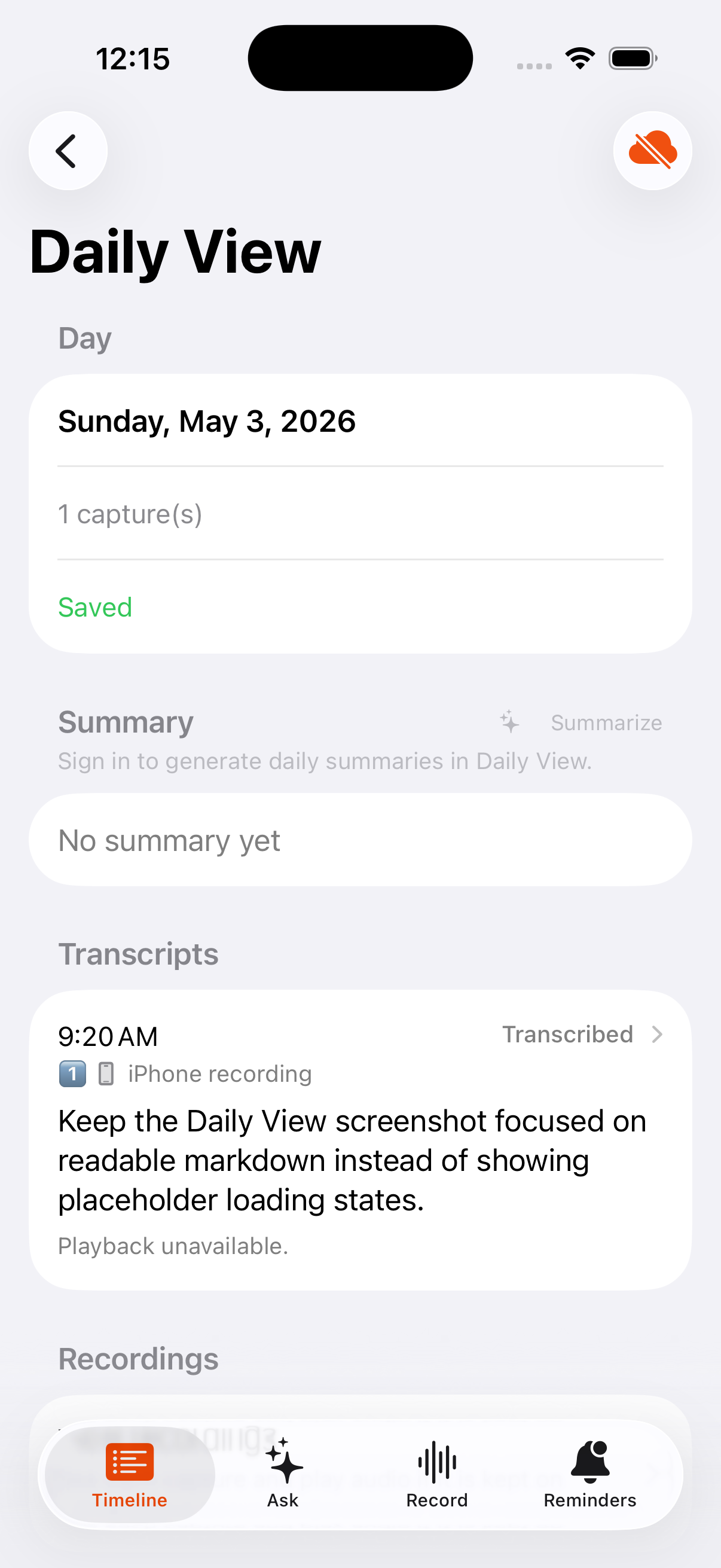
Summaries stay lightweight and sit alongside the day instead of replacing it.
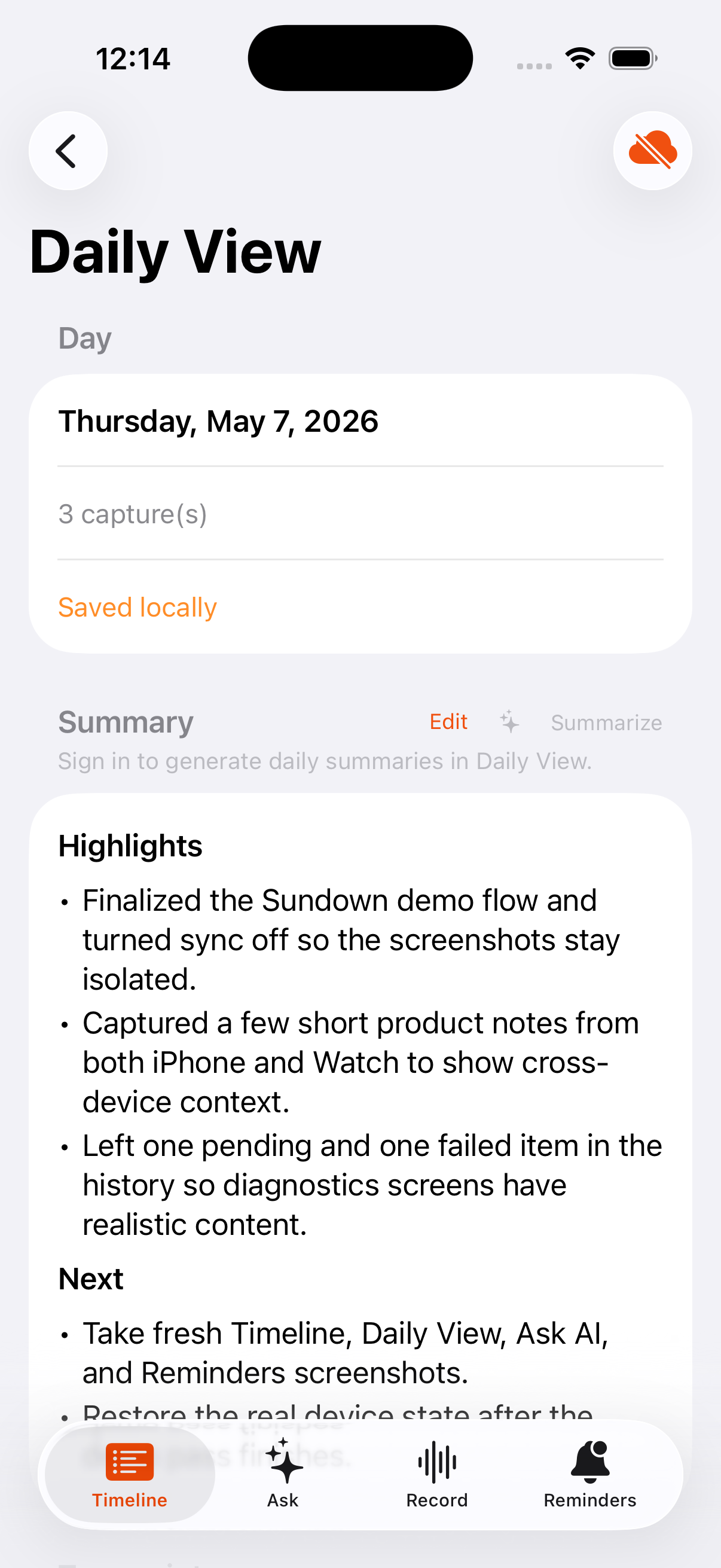
Transcript rows and recording details stay visible even when playback is unavailable.
Open a day
- In Timeline list mode, tap a day row.
- In Calendar mode, tap a populated date cell.
- In Timeline
Askmode, tap a source-date chip from a conversation answer. - In
Record, tap a recent recording to open its parent day.
Calendar dates with no data are visually inactive and do not behave like active journal days.
What to do
- Open a day from Timeline list mode or Calendar mode.
- Review the individual transcripts for that day.
- Tap summarize if you want a per-day AI summary.
- Open the recordings drill-in when you want to inspect source/status details.
- Open Daily View from Ask AI source chips when you want to verify where an answer came from.
What you see
- A transcript-first day page with one row per capture, including captures that are still pending, failed, or otherwise missing transcript text.
- A subtle summarize affordance instead of a large primary summary button.
- A processing disclosure when the day is still finishing some captures.
- Playback controls only when local audio exists and retention allows playback.
What Daily View shows
- Individual transcript rows for the selected day, including captures that are still processing or need another pass.
- A day view built from your saved capture history, not only from exported files or whatever happened to finish syncing first.
- A row count that matches the actual captures Sundown knows belong to that day.
- Capture source, timestamp, and processing status for each transcript row.
- A tap-through recording detail sheet for each transcript row so you can read the full transcript, copy it, edit it when available, and play audio that is still stored locally.
- A subtle summarize refresh affordance for that specific day.
- Processing disclosure text when some same-day captures are still in flight.
Summaries
- Day summaries can be generated manually from Daily View.
- In Sundown Cloud, the free tier includes one successful daily summary per day after sundown using Sundown's default prompt.
- If a cloud summary fails, you can retry it.
- If a cloud summary already succeeded for that day, another refresh requires a paid plan.
- Custom prompts remain a paid capability and only apply when the account has summary-prompt access.
- Settings > Daily View also includes an opt-in automatic daily-summary schedule with a configurable local time and a ready-notification toggle.
- Automatic summary generation on iPhone is still best-effort and runs when the app gets enough background time after the configured summary hour.
- Before an automatic run, Sundown requests watch recovery, processes pending local captures, and runs a full cloud sync so late watch transfers and remote day updates have a chance to land first.
- The summarization path respects the AI option selected in Settings and renders a failure message when the chosen model reports unavailable.
- When a transcript is edited, Sundown updates that capture first and then refreshes the day content so summaries and sync stay aligned with the edited text.
Day-scoped recordings list
Daily View also provides a recordings history drill-in for that day. It shows:
- capture source,
- processing status,
- failure context when present,
- playback controls only when local audio retention is enabled and the file is still available.
If playback is unavailable, the UI explains why instead of showing a broken control.